 English
 Tiếng Việt

Assigning Proxies to Devices
WifiSocks offers two methods for assigning a SOCKS5 proxy on the router to a device: manual and automatic.
1. Supported Proxy Types
WifiSocks supports Socks5, HTTP, HTTPS, and ShadowSocks proxy types.
2. Proxy Format
HTTP/HTTPS Proxy
- Input format:
http://orhttps://+ IP address + port - With authentication: Prepend
username:password@before the IP address - Examples:
- No authentication required:
https://192.168.1.100:443 - With authentication:
http://user:[email protected]:8080
- No authentication required:
SOCKS5 Proxy
- Input format:
socks5://+ IP address + port - With authentication: Prepend
username:password@before the IP address - Examples:
- No authentication required:
socks5://192.168.1.100:1080 - With authentication:
socks5://vipuser:[email protected]:1080
- No authentication required:
ShadowSocks Proxy
There are three ways to input a ShadowSocks proxy:
-
Simple format:
ss://method:password@ip:port- Example:
ss://aes-256-gcm:[email protected]:8388
-
Base64 encoding (method + password):
ss://BASE64(method:password)@ip:port- Example:
ss://[email protected]:8388
-
Base64 encoding (entire information):
ss://BASE64(method:password@ip:port)- Example:
ss://YWVzLTI1Ni1nY206cGFzc3dvcmRAMTkyLjE2OC4xLjEwMDo4Mzg4
- Supported methods:
aes-128-gcm,aes-192-gcm,aes-256-gcm,chacha20-ietf-poly1305,xchacha20-ietf-poly1305
3. Manual Proxy Assignment
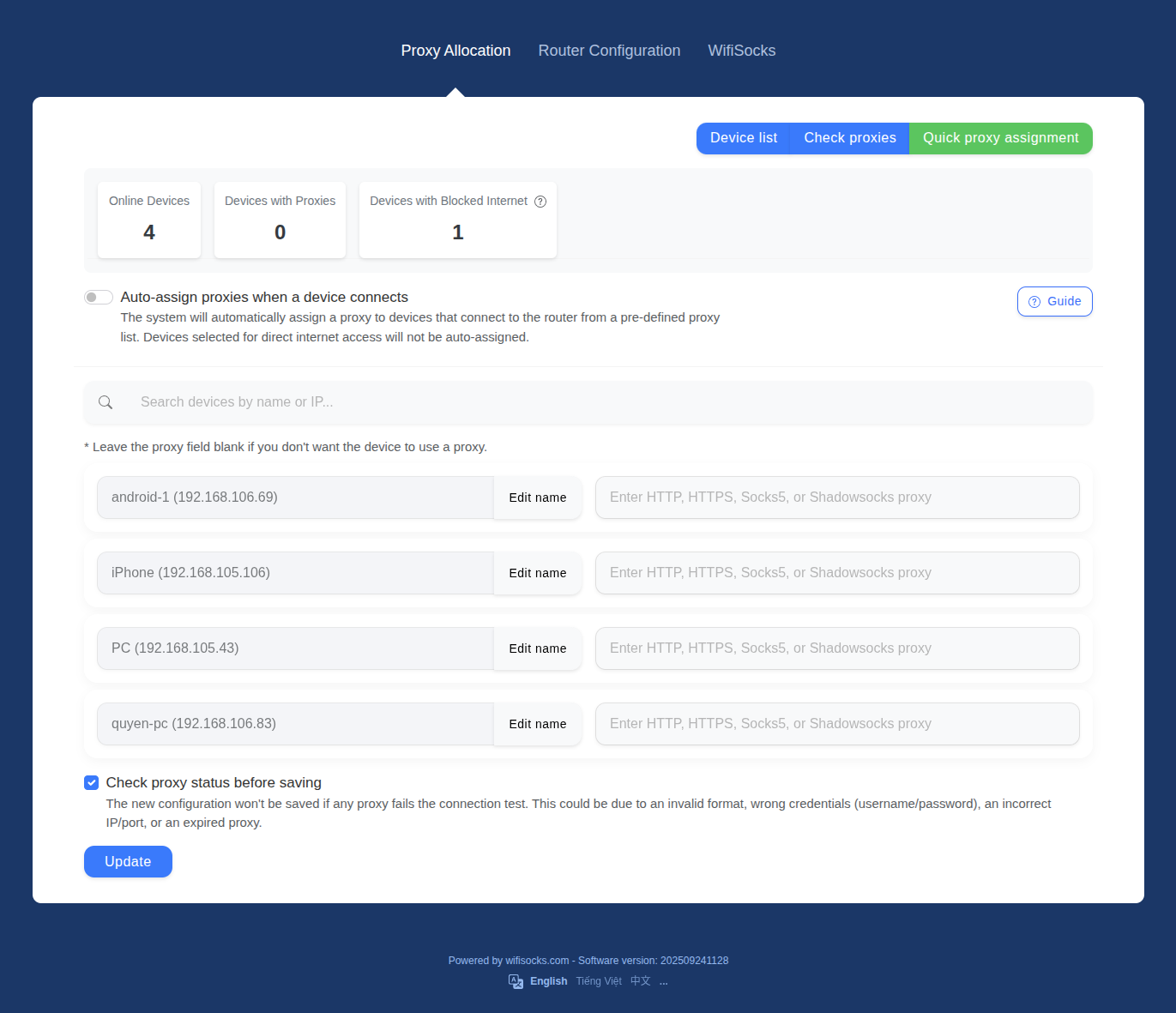
This feature allows you to manually allocate a proxy to each device connected to the WifiSocks Proxy Router. On the admin page, you will see a full list of connected devices. To assign a proxy to a device, enter the proxy information into the corresponding field and click “Update”.
WifiSocks will automatically check the proxy’s validity. If the proxy is not working or the input format is incorrect, the system will display an error message prompting you to update the entry.
4. Automatic Proxy Assignment
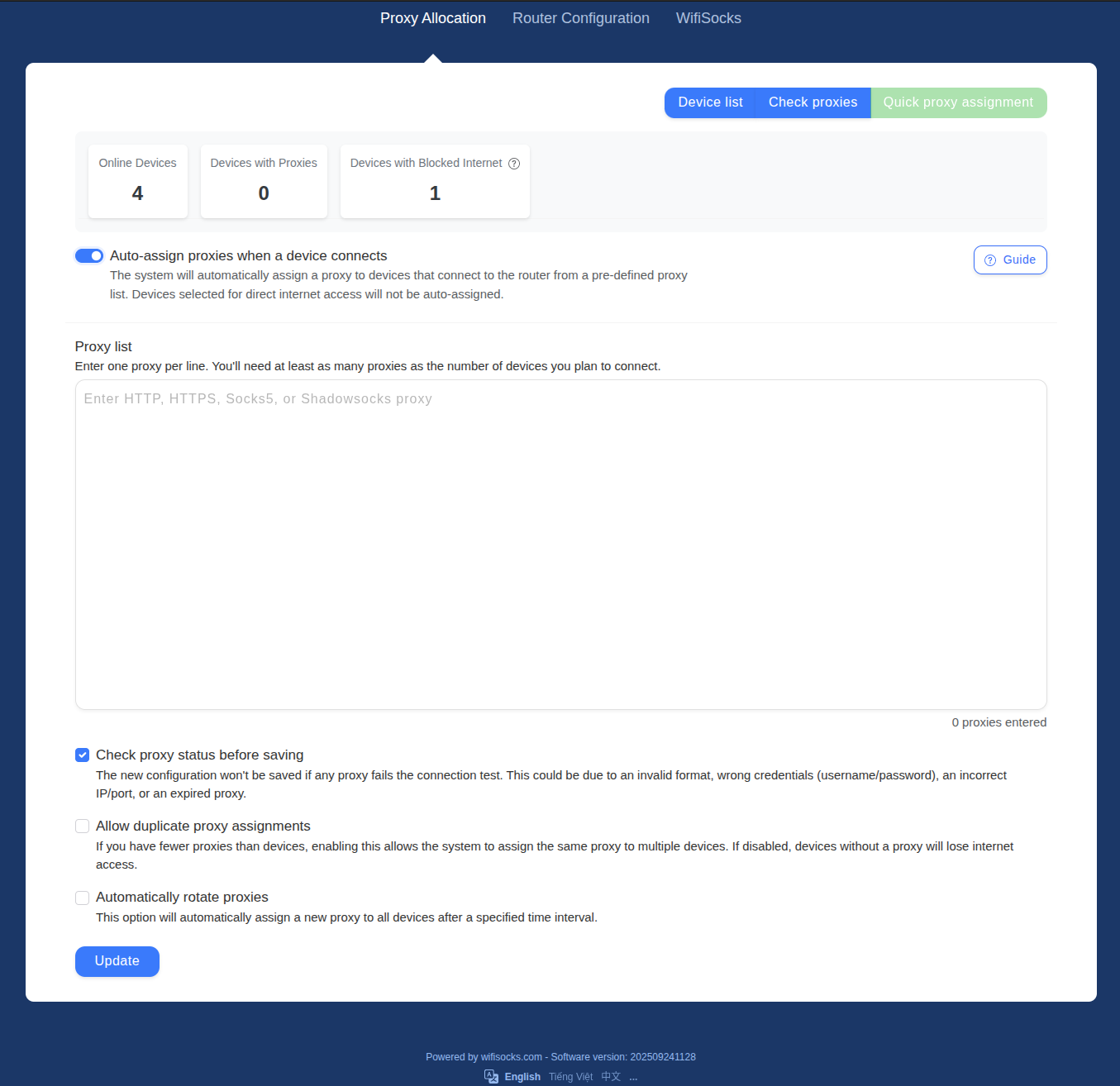
- Enter the proxy list: Input the list of proxies into the WifiSocks Router. The quantity should ideally be limited to fewer than 1000 proxies to conserve the Router’s memory.
- Operation mechanism: When a device connects, it will be assigned a random proxy from the list. When a device disconnects, the proxy assigned to it will be revoked and made available for assignment to other devices in the future.
Advanced Customization:
- Allow duplicate proxy assignments: Multiple devices can use the same proxy concurrently. Use this option when you want to enter a smaller number of proxies than the number of devices.
- Automatically rotate proxies: Automatically changes the proxy for devices after a specified period. The unit is seconds. For example, if you need to rotate the proxy every 5 minutes, enter 300.
Note: All changes take effect immediately after clicking “Update”.
5. Troubleshooting
5.1. Device not showing up:
- Check connection: Ensure the device is properly connected to the WifiSocks Router’s Wi-Fi network or connected directly to the Router via an Ethernet cable.
- IP Configuration: The device should use DHCP mode to automatically receive an IP address from the router. Please check your device settings and ensure DHCP mode is selected.
- Refresh: Reload the admin page to update the device list.
5.2. Proxy reports an error:
- Check settings: Confirm that the proxy information (proxy format, proxy protocol, username/password) has been entered correctly. Refer to sections 1 and 2 on this page.
- Check proxy forwarder settings (e.g., PiaProxy, 922 proxy, 9Proxy…):
- Ensure you have selected the correct LAN IP when forwarding the port. Check the computer’s LAN IP by looking
at the network icon in the bottom-right corner of the screen if you are using Windows. For example, if the IP is
192.168.105.99, you must select this exact IP when forwarding the proxy in the proxy application you are using. - Ensure the device running the proxy forwarder application has an internet connection. If it’s connected directly to the WifiSocks router, it must be allowed to access the original network (non-proxied).
- Ensure you are not setting a proxy for the device running the proxy forwarder app itself. If you are trying to set one for the proxy forwarder machine, you must remove it and set it for another device. The device running the proxy forwarder app must use the original network.
- You need to open the firewall on the computer running the proxy forwarder app to allow external connections.
- Refer to the documentation: Guide to configuring Windows firewall
- Ensure you have selected the correct LAN IP when forwarding the port. Check the computer’s LAN IP by looking
at the network icon in the bottom-right corner of the screen if you are using Windows. For example, if the IP is
- Proxy is too slow or has stopped working (dead): The proxy may be overloaded, leading to excessively slow speeds,
or it may have expired/stopped functioning. Try changing to a different proxy.
- How to check:
- Open CMD or Terminal and run the following command:
curl -x protocol://username:password@address:port ifconfig.co -vvv
- After running the command, you will see the proxy connection process, which can help detect a slow or
inactive proxy.
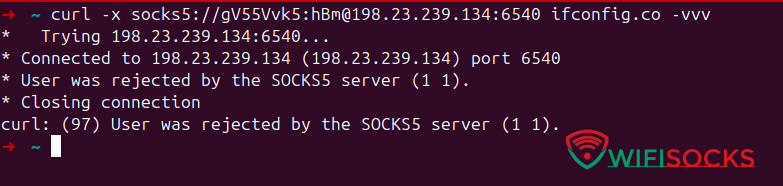
- Open CMD or Terminal and run the following command:
- How to check:
- Contact the provider: If the issue persists, contact your proxy provider for support.
5.3. Device has no Internet:
- Inactive proxy: Check the status of the proxy and reload the admin page to update the information. The WifiSocks Router automatically checks the proxy status and notifies you when a proxy stops working.
- Proxy quantity in automatic assignment mode: Ensure the number of proxies is sufficient for all connected devices. If necessary, add new proxies or allow duplicate assignments (refer to section 4 on this page).
- Incorrect device time: The device may not be able to access the internet if its time setting is incorrect. Check your device’s time settings and update the time if it is inaccurate.
5.4. Device still uses the original network:
- Device is allowed direct network access: The automatic proxy assignment function will not assign a proxy to a device that is currently allowed direct network access (bypassing the proxy). Remove the device’s direct network access permission and try again.


