 English
 Tiếng Việt
First-Time User Guide
WifiSocks is designed to deliver an optimal user experience. Although the interface is very friendly, we understand that you may encounter some initial difficulties when using it for the first time. Please refer to the detailed guide on this page to familiarize yourself with and effectively use your WifiSocks Router.
1. Providing Internet Access to the WifiSocks Router
Note: Use a Cat6 or higher network cable to ensure a stable connection and maximum speed.
To connect the router to your modem/load balancer:
- Identify the WAN port:
- PC Router: ETH1 port
- AX3000 Router: Port labeled “WAN”
- AX1800 Router (CR6609, CR6606): Port labeled “WAN”
- Redmi AX6000: Port number “1”
- Xiaomi AX9000: Blue-colored port
- Connect: Use a network cable to plug the router’s WAN port into a LAN port on your modem/load balancer.
2. Connecting Devices to the WifiSocks Router
-
Wireless Connection (Wi-Fi)
- Default Wi-Fi Network Names (SSIDs):
- WifiSocks 2G
- WifiSocks 5G
- Default Password: wifisocks
- Default Wi-Fi Network Names (SSIDs):
-
Wired Connection (Ethernet Cable)
- How to: Use a network cable to connect directly from one of the LAN ports on the router (excluding the WAN port mentioned in section 1) to the port on your device.
-
Important Note: Do not use Static IP mode on your device. Please use DHCP mode to let the router assign the IP address and avoid conflicts.
3. Accessing the Admin Page
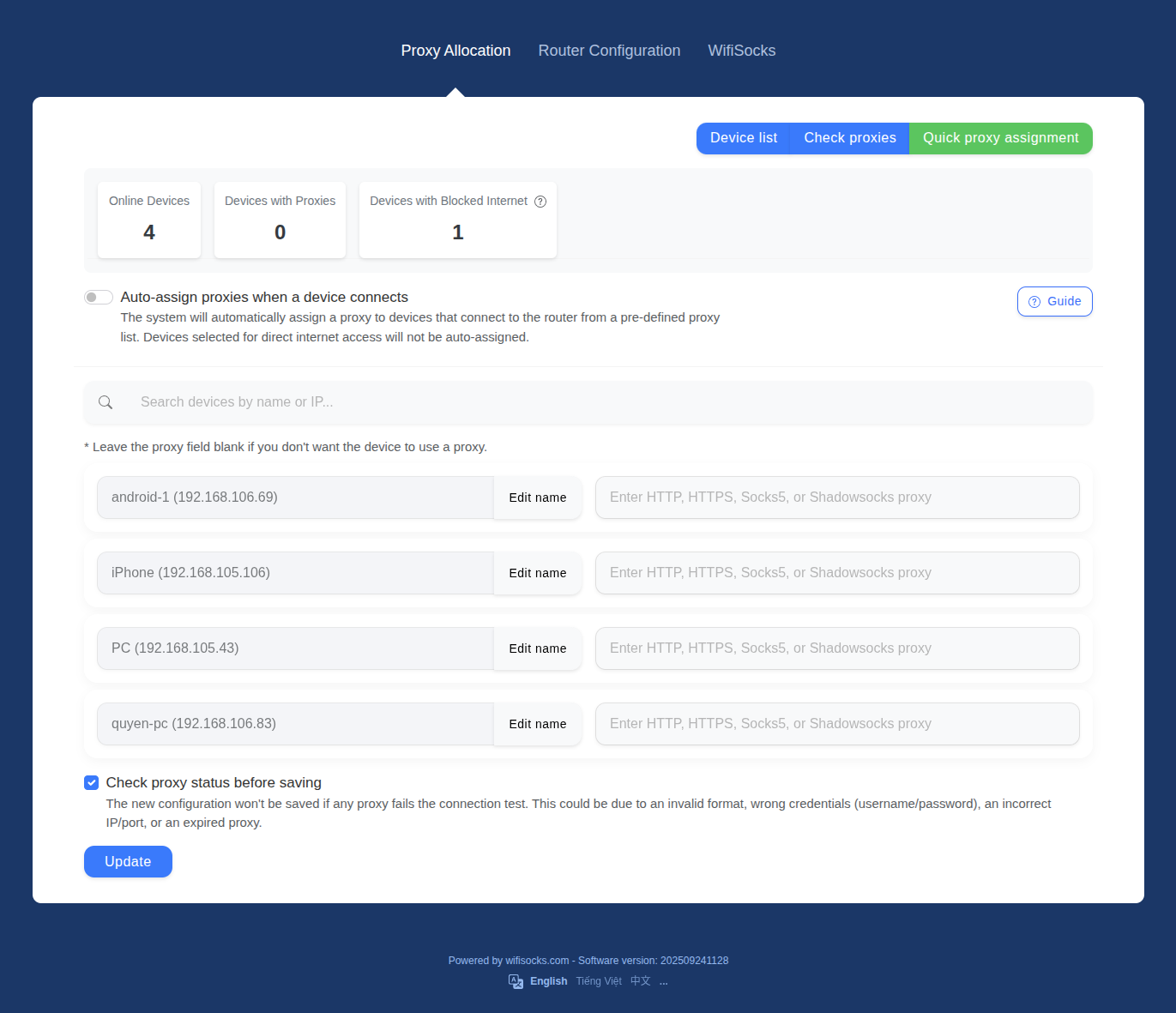
There are 2 ways to access the admin page:
-
Method 1: Direct Access via Gateway IP:
- Condition: Your device must be connected directly to the WifiSocks router via Wi-Fi or Ethernet cable.
- Determine the IP: The default IP address is 192.168.105.1. If this has been changed, check your device’s connection information to find the gateway IP address.
- Access: Open your browser and enter the IP address into the address bar.
-
Method 2: Access via Modem/Load Balancer:
- Condition: The device you are using does not need to be connected directly to the WifiSocks Router. However, both the accessing device and the WifiSocks Router must be connected to the same modem/load balancer.
- Determine the IP:
- Access your modem/load balancer’s admin page. Find the device list and identify the IP address of the
WifiSocks router (it usually has the hostname
WifiSocks). - Alternatively, you can find the WifiSocks IP address using a LAN network scanning application:
- iOS: Use the app
Network Analyzer: net tools - Android: Use the app
Network Analyzer - Windows: Use the application
Advanced IP Scanner- Download at: https://www.advanced-ip-scanner.com
- iOS: Use the app
- Access your modem/load balancer’s admin page. Find the device list and identify the IP address of the
WifiSocks router (it usually has the hostname
- Access: Open your browser and enter the IP address you found.
4. Troubleshooting
4.1. Cannot access the WifiSocks admin page:
- Check the connection:
- Verify the IP address of WifiSocks (refer to section 3). Ensure you are using the correct WifiSocks Router IP to access the admin page.
- Ensure your device is in DHCP mode. If you are using Static IP mode, ensure the correct WifiSocks Subnet is configured.
- Check the computer you are using to access the WifiSocks admin page. Ensure you are not using any VPN or proxy installed directly on the machine. If a proxy or VPN is installed on the machine, you will not be able to access the WifiSocks admin page. You must disable any such Proxy/VPN.
- Check the admin page address in your browser’s address bar. Ensure you are using the
http://protocol. If you are usinghttps://, you need to correct it. Example of a valid URL:http://192.168.105.1 - Restart both your device and the WifiSocks Router.
4.2. Device has no internet access:
-
The device cannot use the direct network (non-proxied) until explicitly permitted, to prevent original IP leakage. For the device to have internet access, you need to do one of the following two things:
- Assign a proxy:
- Configure a proxy for the device in the “Proxy Allocation” section of the WifiSocks admin page.
- Refer to the documentation: Assigning Proxies to Devices
- Allow device direct internet access:
- If you do not want the device to use a proxy, you must allow it to use the direct network under “Router Configuration” -> “Direct Internet Access” on the WifiSocks admin page.
- Refer to the documentation: Allowing Devices to Use Direct Internet Access (Bypass Proxy)
- Assign a proxy:
-
Use DHCP mode:
- The device must use DHCP mode to avoid IP conflicts or incorrect subnet configuration.
4.3. WifiSocks Router reports no internet connection error:
- Check network configuration:
- Re-verify the network port information (refer to section 1). Ensure the correct WAN port on the WifiSocks Router is connected.
- Check physical connection:
- Check that the network cable is not loose or broken. Ensure it is plugged into the correct LAN port of the Modem/Load Balancer.


