 English
 Tiếng Việt
Detailed LAN Network Configuration Guide
Table of Contents
A LAN (Local Area Network) connects devices within a limited area, such as an office or home. The WifiSocks Router provides flexible and secure LAN network management features.
Essential Concepts to Understand
| Parameter | Description |
|---|---|
| DHCP | The protocol for automatically assigning IP addresses to devices connected to the LAN, simplifying IP address management. |
| DHCP Start | The first IP address in the range to be assigned by DHCP. It should start from 2 to avoid conflicting with the router’s IP address (gateway). |
| DHCP Limit | The maximum number of IP addresses that the DHCP server can assign. When this limit is reached, new devices will not be able to connect to the LAN. |
| DHCP Lease Time | The duration an IP address is reserved for a device. After this time, if the device is no longer using the IP, the address is reclaimed and can be assigned to another device. |
| Prefix Length | The network prefix length, which determines the number of available IP addresses in the LAN. A larger value means fewer available IPs. Example: /24 allows 254 devices, /28 allows 14 devices. |
LAN Network Management
Open the router’s admin page, navigate to the “Router Configuration” tab, and click the “Manage LANs” button.
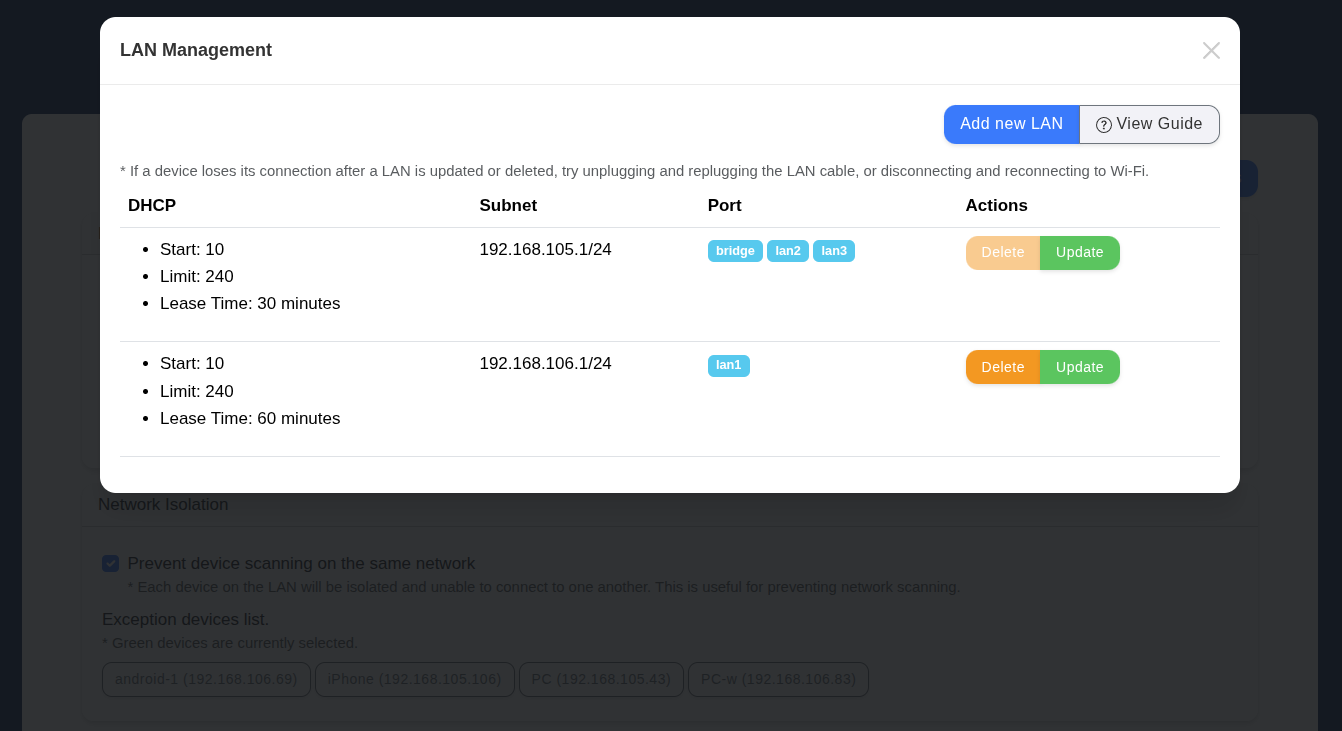
LAN Network List
-
Displays a list of existing LAN networks on the router.
-
Track detailed information: DHCP configuration, subnet, and the network port in use.
Update LAN Network
- Select the LAN network you want to update.
- Click the “Update” button.
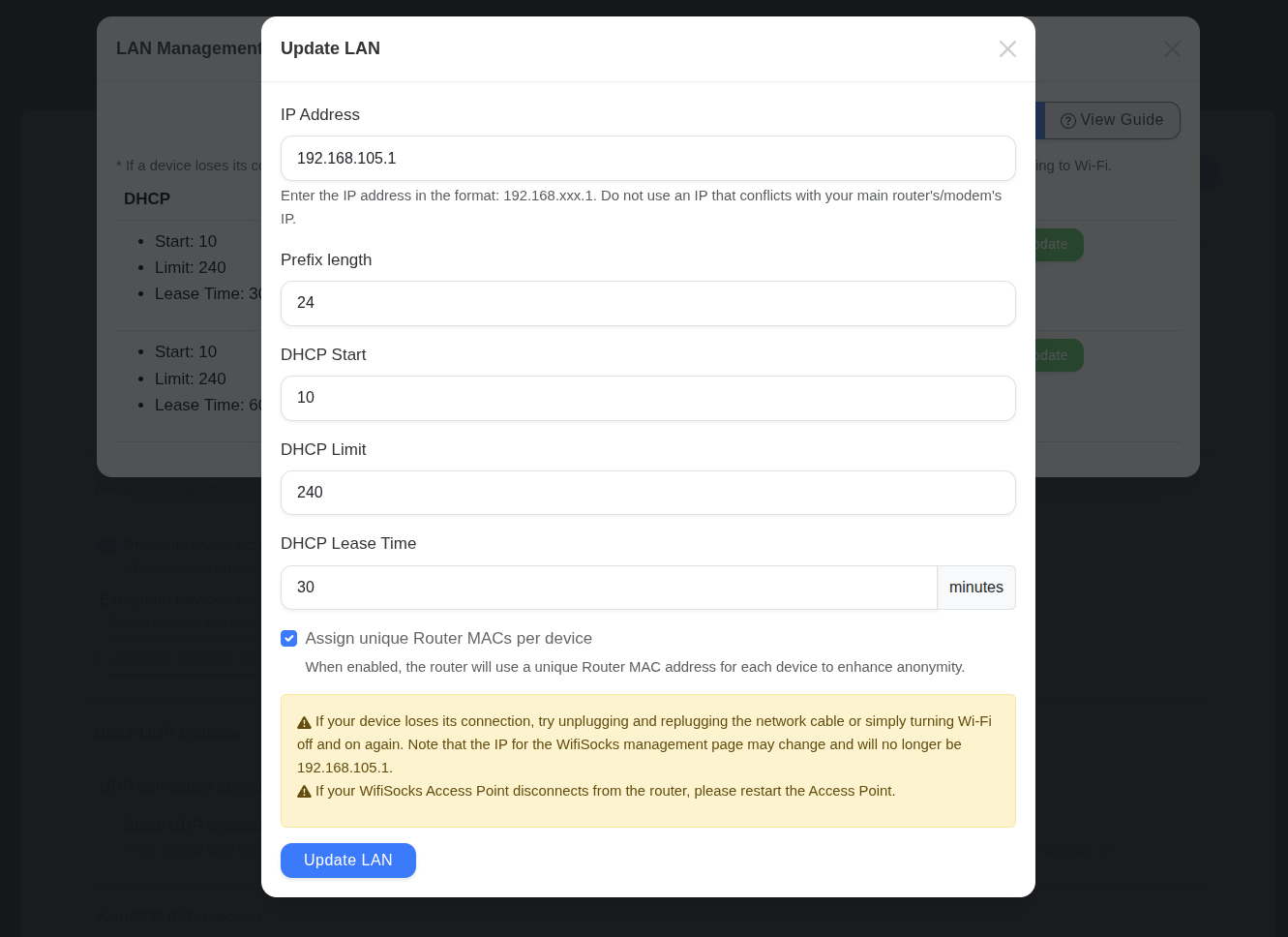
- Change the parameters: IP address, prefix length, DHCP settings (start, limit, lease time), and Private LAN MAC.
- IP Address:
- Enter an address belonging to one of the following two subnets:
192.168.0.0/16or172.0.0.0/12. - Example:
192.168.1.1
- Enter an address belonging to one of the following two subnets:
- Prefix Length: Change or keep the default value of 24.
- IP Address:
- Click “Update LAN Network” to save the changes.
Add New LAN Network
- Click the “Add LAN Network” button.
- Enter parameters similar to those used when updating a LAN network.
- Select the physical LAN port to be assigned to the new LAN network.
- Click “Add LAN Network” to save.
Delete LAN Network
- The WifiSocks router’s default LAN network cannot be deleted.
- To delete a LAN network assigned to a physical LAN port, click the “Delete” button.
Usage Recommendations
- Security: Change the router’s default IP address to enhance security and anonymity.
- DHCP Lease Time:
- For short-term connections: Decrease the lease time to prevent IP address exhaustion, which would block new devices from connecting. Use the formula: Estimated connection time divided by 2. For example, if a device disconnects after 10 minutes, set the lease time to 5 minutes.
- For long-term connections: Increase the lease time (30-60 minutes) to reduce the load on the DHCP server.
- Device Isolation: Enable the Assign unique Router MACs per device function and create a separate LAN network for each physical LAN port to optimize device isolation. Also, enable the network isolation feature.
Troubleshooting
-
Cannot access the admin page:
- Check and use the router’s new IP address.
- How to find the gateway IP address:
- Windows: View network information at the Network icon in the bottom-right corner of the screen.
- Android/iOS: In the Wi-Fi network settings.
-
Device is not receiving the new LAN IP:
- Disconnect and reconnect the device to the router.
- Open CMD and use the commands
ipconfig /releaseandipconfig /renewon Windows. - Restart the device if necessary.
-
Cannot connect additional devices to the router:
- Check the DHCP settings (Start, Limit, Lease Time).
- Reduce the lease time, reduce the starting IP, and increase the limit to increase the number of assignable LAN IP addresses.
- Use a lower prefix length, e.g., 22 (total number of IPs will be 1024).
Note: If the issue persists, please contact technical support.


