 English
 Tiếng Việt

Guide to Configuring Windows Firewall
For the WifiSocks Router to function with proxy forwarders (PIA, 922, ABC, and similar types), you must open ports on the Windows Firewall or allow the application to receive incoming connections. Detailed instructions are provided in this document.
1. System Requirements
- Windows 8 or later
- The instructions assume you are using the English language interface, as the screenshots and terminology in this guide are in English.
2. Detailed Instructions
2.1. Accessing Firewall Settings
-
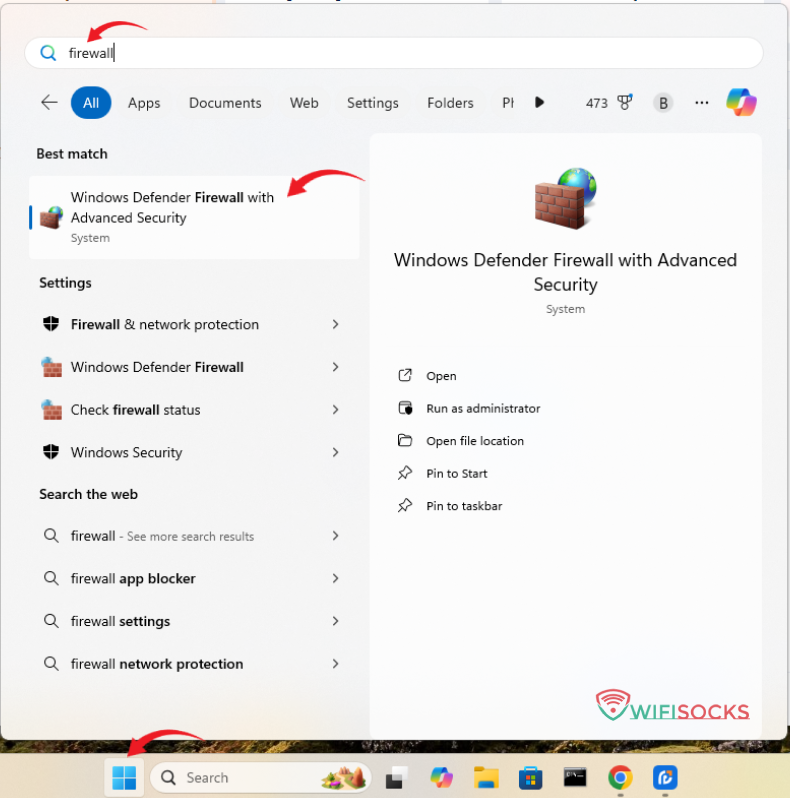
Open the Start menu.
-
Search for and open the application “Windows Defender Firewall with Advanced Security”.
2.2. Enabling Inbound Rules
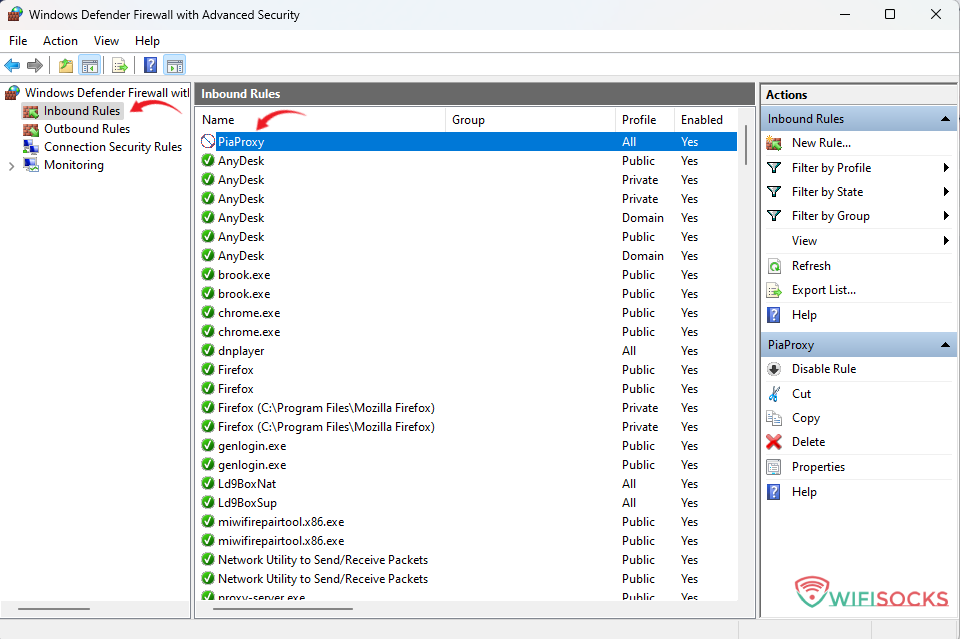
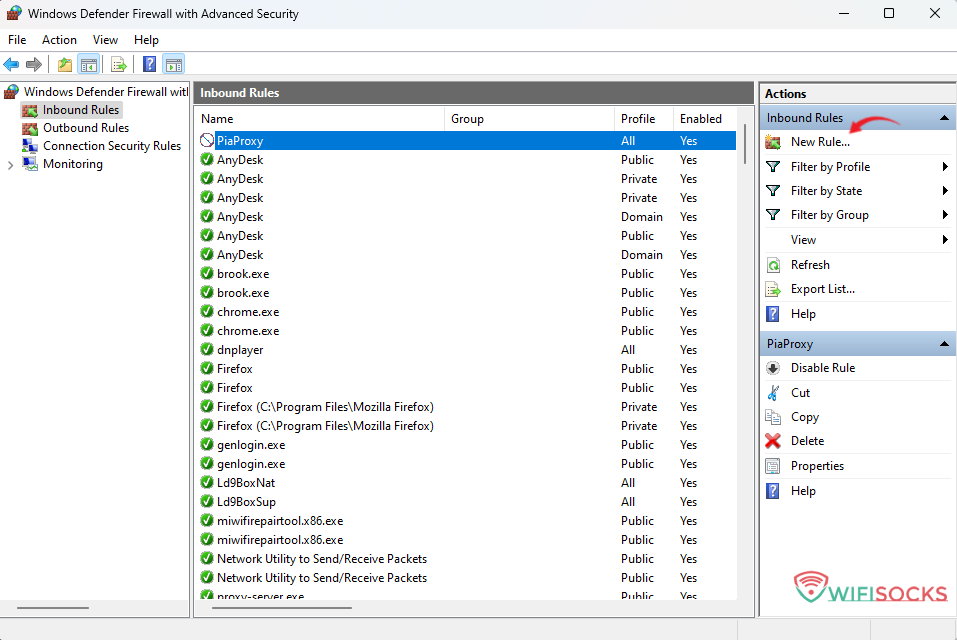
In the Firewall window, select “Inbound Rules”.
2.2.1. Allowing an Application
-
Find and select the rule:
-
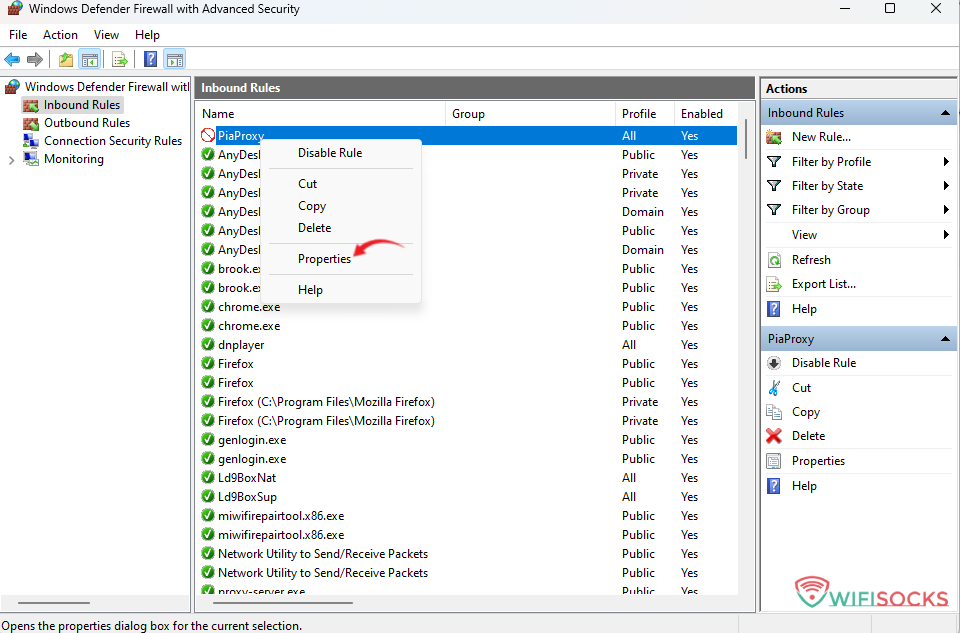
Search for rules related to the application you need to allow (e.g., PiaProxy). There may be one or more rules.
-
Right-click on the rule and select “Properties”.
-
-
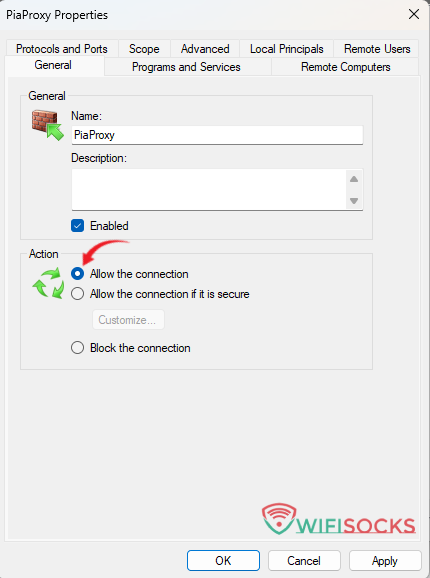
Configure the rule:
-
In the “General” tab, select “Allow the connection”.
-
Click “OK” to save the change.
-
-
Repeat: Perform the same steps for all rules associated with the proxy forwarder application you are using.
2.2.2. Adding a Port Opening Rule
-
Instead of directly opening ports, we recommend creating a rule for each application to ensure better security.
-
Complete each step and click “Next” to proceed to the next one.
Steps:
-
Create a new rule: In the “Actions” section, select “New Rule”.
-
Select rule type: Choose “Port”.
-
Set the protocol: Select TCP or UDP (you need to create two separate rules for both protocols).
-
Specify ports: Enter the range of ports to be opened in the “Specific local ports” field (e.g.,
4000-6000will open ports from 4000 to 6000). -
Allow connection: Select “Allow the connection”.
-
Name the rule: Enter a descriptive name for the rule to easily manage it later.
-
Apply the rule: Click Finish to complete the rule setup process.


