 English
 Tiếng Việt

Guide to Using PIA S5 Proxy with the WifiSocks Router
This document provides instructions on how to use PIA S5 Proxy with the WifiSocks Router. The procedure is similar for other Proxy Forwarder applications as well.
1. Requirements
- Operating system: Windows (This guide uses the English interface).
- The PIA S5 Proxy application must be installed and active:
- It must have a stable internet connection.
- It must be using a direct network connection (not via a VPN or Proxy).
- It must be connected to the WifiSocks router’s LAN network.
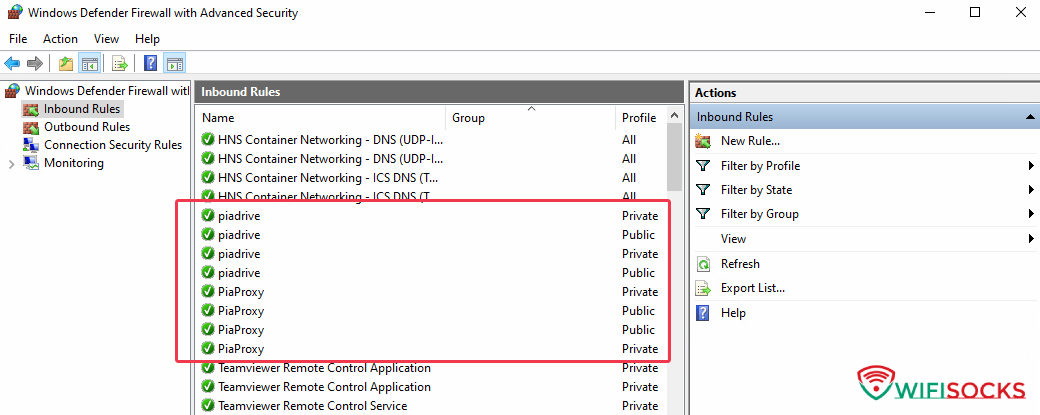
- The Windows Firewall must be configured to allow incoming external connections.
- Refer to the detailed guide here: Guide to Configuring Windows Firewall
2. Identifying the LAN IP Address
The first step is to identify the LAN IP address of the computer running the PIA S5 Proxy application.
- Open Network Status:
-
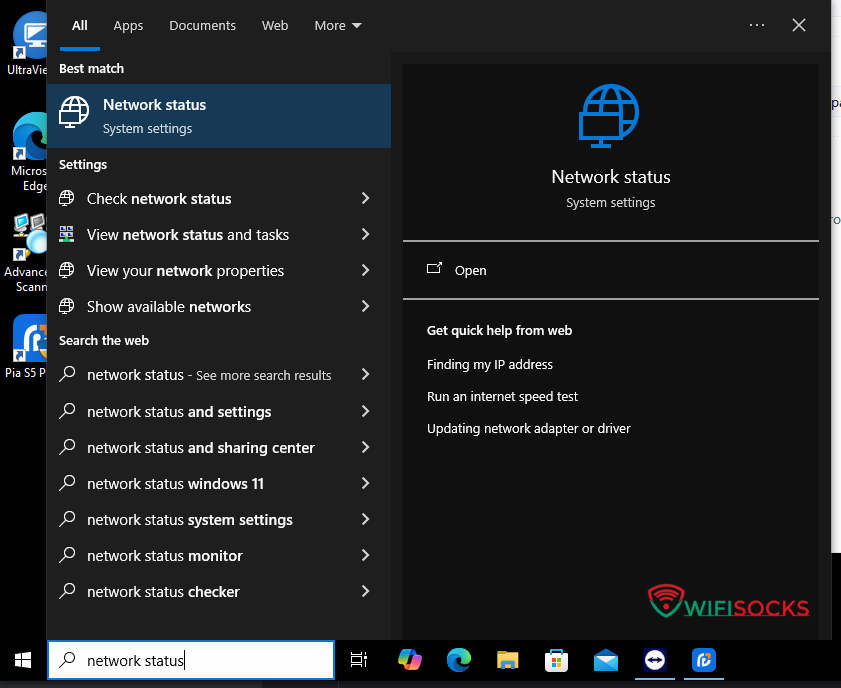
Type “Network status” into the Windows search bar.
-
Select the “Network status” application as illustrated.
- View network connection details:
-
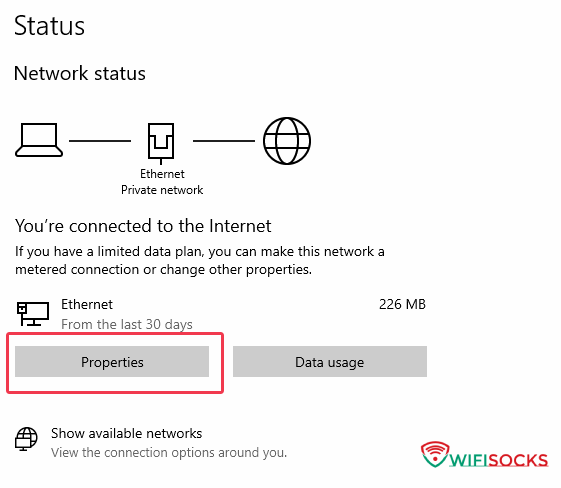
On the “Network status” screen, click “Properties”.
-
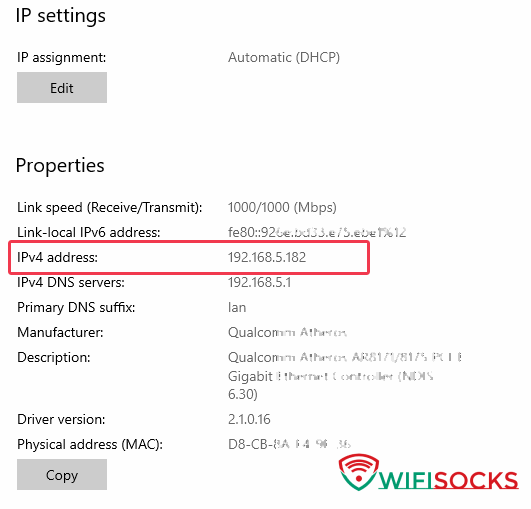
The LAN IP address will be displayed as shown below (e.g.,
192.168.5.182). -
Note down this IP address to use in the following steps.
3. Setting Up Local Proxy in the PIA Proxy Application
-
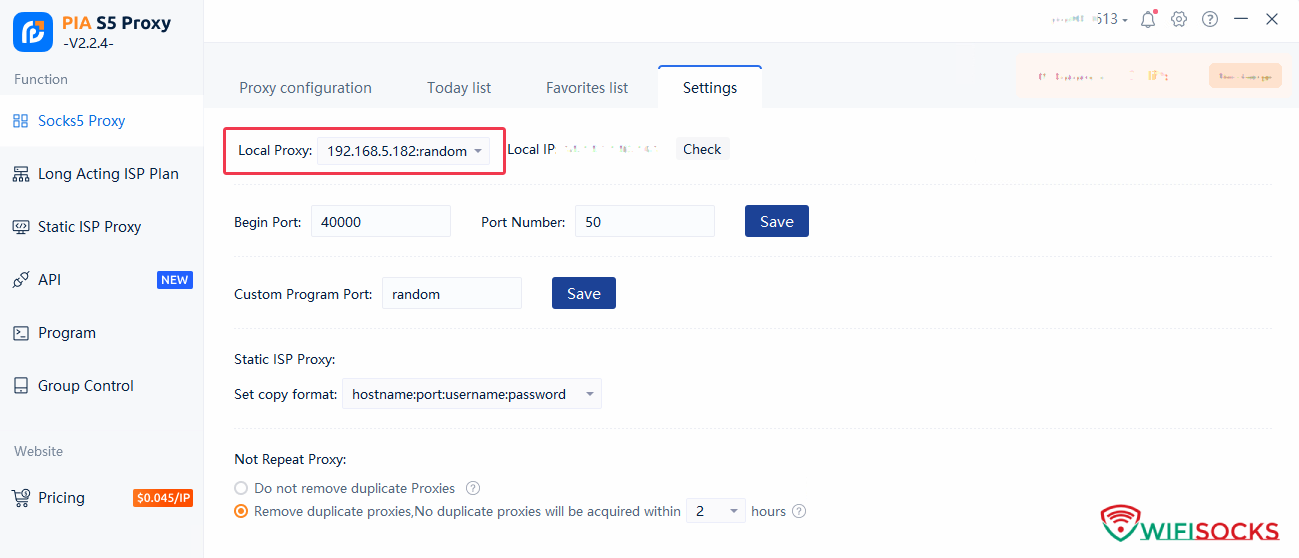
Open the PIA S5 Proxy application and navigate to the “Settings” section.
-
Enter the LAN IP address identified in step 2 into the application’s Proxy settings.
-
Port Forwarding and WifiSocks Router Configuration:
- After successfully forwarding the port (e.g., port
40000, IP192.168.5.182), configure the WifiSocks router with the proxy address:socks5://192.168.5.182:40000.
4. Troubleshooting
4.1. WifiSocks Router Reports Connection Error to Proxy
- Check Firewall Configuration:
- Ensure the Firewall on the computer running PIA Proxy is configured to allow incoming external connections.
- Tip: Temporarily disable the Firewall to check if it is the cause. If the connection succeeds, you must reconfigure the Firewall to allow the PIA Proxy application to function.
- Verify LAN IP in PIA Proxy Settings:
- Open the PIA Proxy application, go to Settings, and check if the correct LAN IP address is selected.
- Tip: Compare the LAN IP displayed in the PIA Proxy settings with the computer’s actual LAN IP address (identified in section 2).
- Verify Proxy Address on the WifiSocks Router:
- Ensure the Proxy address configured on the WifiSocks Router is the computer’s LAN IP address, not
127.0.0.1. - Tip: Double-check the Proxy address entered on the WifiSocks Router. The correct Proxy address format must be
socks5://LANIP:PORT(whereLANIPis the computer’s LAN IP address).
- Ensure the Proxy address configured on the WifiSocks Router is the computer’s LAN IP address, not
- Check LAN Network Connectivity:
- Ensure the computer running PIA Proxy and the WifiSocks Router are on the same LAN network.
- The computer should be connected directly to the WifiSocks Router or connected to the same modem/load balancer as WifiSocks.
- Tip: Check the network cable connections or Wi-Fi connection to ensure both devices can ping each other.
- If the computer is connected directly to WifiSocks, ensure the device is allowed to use the direct network and
is NOT configured with a proxy.
- Tip: Check the WifiSocks admin page:
Router Configuration -> Direct Internet Access.
- Tip: Check the WifiSocks admin page:
- Ensure the computer running PIA Proxy and the WifiSocks Router are on the same LAN network.


