Connecting Desktop Proxy Forwarders (Local SOCKS5 Clients)
Table of Contents
When using desktop proxy client software (such as PIA Proxy, 922 Proxy, or other SOCKS5 forwarders) running on a Windows PC to distribute proxy endpoints across your router, you must bind the forwarder to your local LAN IP and configure firewall rules.
[!NOTE] Neutral Tool Notice: WifiSocks is an independent, software-only routing platform. WifiSocks does not provide, sell, or affiliate with third-party proxy services. Third-party names are mentioned solely for technical compatibility illustrations.
1. Prerequisites
- Windows 10 or Windows 11 host PC connected to the WifiSocks router network.
- Desktop proxy client running with active proxy credentials.
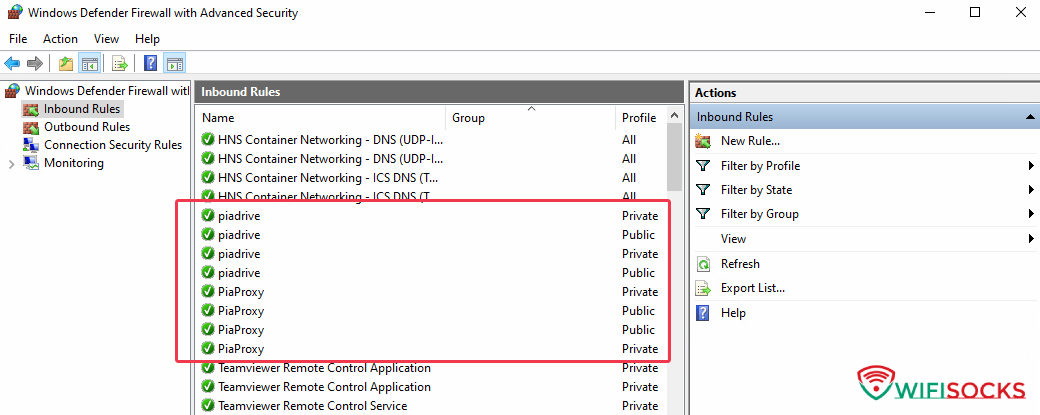
- Windows Defender Firewall configured to allow inbound traffic. See Configuring Windows Firewall.
- Host PC whitelisted for Direct WAN Access on the router so it can communicate with upstream proxy servers. See Direct WAN Access.
flowchart LR
HostPC["Windows PC (Host: 192.168.105.99)"] -->|"Direct WAN (ISP)"| CloudProxy["Upstream Proxy Server"]
HostPC -->|"Listens on Port :40000"| LocalPort["Local SOCKS5 Service"]
Router["WifiSocks Router Gateway"] -->|"Routes Client Traffic to 192.168.105.99:40000"| LocalPort
Clients["Client Devices (Mobile / PC / VM)"] --> Router
2. Identify the Host PC LAN IP Address
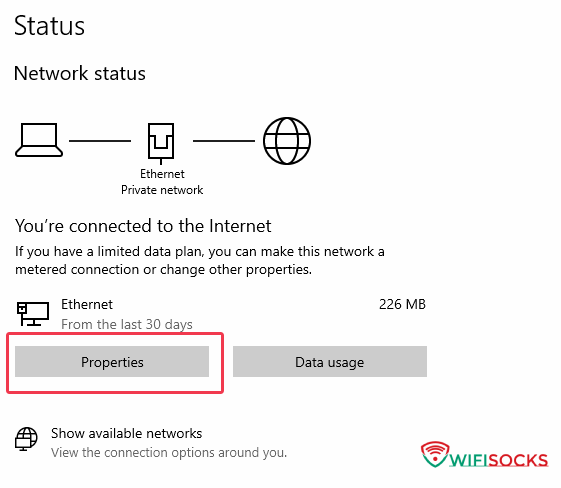
- On your Windows PC, open Settings -> Network & Internet -> Status.
- Click Properties on your active Ethernet or Wi-Fi connection.
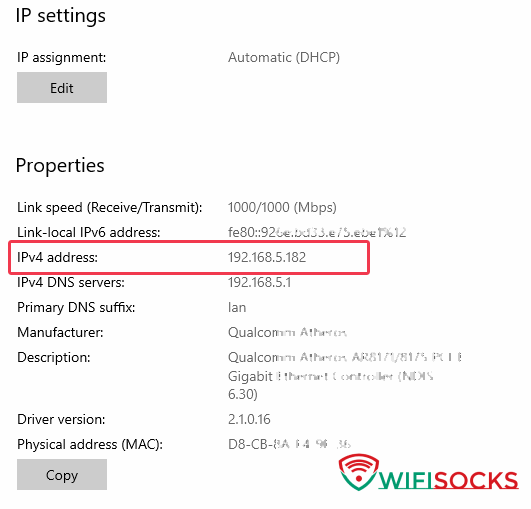
- Locate your IPv4 address (for example:
192.168.105.99or192.168.1.182).
3. Configure Local Proxy Client Binding
- Open your desktop proxy forwarder software and navigate to Settings.
- Change the listening address from loopback (
127.0.0.1) to your actual Host LAN IP (e.g.192.168.105.99) or0.0.0.0(all interfaces).
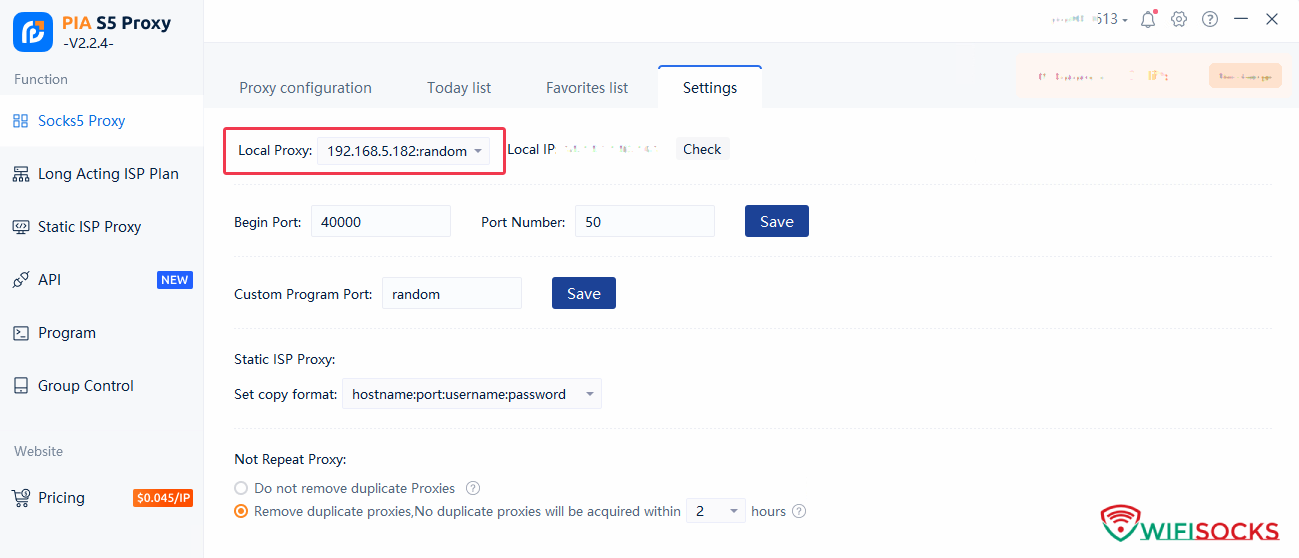
- Forward your desired proxy port (for example: port
40000).
4. Assign the Forwarded Proxy in WifiSocks
- Open the router dashboard at
http://192.168.105.1. - Go to Proxy Routing.
- Locate the target client device in the table.
- Enter the local forwarder string:
socks5://192.168.105.99:40000 - Click Update to commit the route.
5. Troubleshooting
Router reports proxy connection error
- Loopback binding: Ensure the desktop proxy software binds to your actual LAN IP (
192.168.105.99) or0.0.0.0, not127.0.0.1. - Windows Firewall: Ensure Windows Defender Firewall has an active inbound rule allowing traffic on port
40000. See Configuring Windows Firewall. - Host PC network routing: Confirm the host PC is set to Direct WAN Access in Router Configuration -> Connection Setup and is not routed into another proxy.

